Pest control customer portals: a practical guide to self-service
Plan a pest control customer portal for visits, payments and field reports, with clear settings and a practical launch checklist.
Last updated
A pest control customer portal gives customers a direct way to handle routine account tasks, such as checking visits or paying an invoice. Its value depends on whether those actions connect to the operation behind the screen. A payment or confirmation should leave the office with a clear result, not another message to re-enter.
Solea's portal connects to an AI-native platform covering customer management, scheduling, field work, payments, collections and AI-assisted reporting. For companies with 5+ technicians through mid-market and enterprise, it provides a self-service path alongside the office's automated workflows.
Start with the questions customers already ask
Look at the routine requests reaching the office. Customers may want to check an appointment, find an invoice, update a payment method or obtain a field report. Choose portal actions that answer those requests, then test the complete customer experience.
Use a fictional account first. Verify that the customer can reach the right information and that the office can explain the result. Do not turn on every option simply because it exists. The portal should reflect how your company wants customers to interact with service and billing.
What Solea customers can do
Solea documents portal access to visits, invoice payment, payment methods, autopay and field reports. Available pages and actions depend on office settings. Appointment confirmation is an optional action that starts disabled; when enabled, a customer can confirm an eligible pending appointment and lock its time.
The distinction matters for AI scheduling. A confirmed commitment becomes something the operation must respect. Self-service is useful when it works with the scheduling rules rather than creating a second version of what the customer was promised. Explore scheduling and dispatch.
| Customer task | What to verify before launch |
|---|---|
| Check visits | The account shows the expected service information. |
| Confirm an appointment | The action is enabled, the visit is eligible and the resulting lock is understood. |
| Pay an invoice | Payment is enabled and the customer can identify the invoice being paid. |
| Manage a payment method or autopay | The intended actions are available under your office configuration. |
| Download a field report | The customer can find the relevant service documentation. |
This table describes a setup review, not a promise that every action is enabled by default.
Make signing in recognizable
Solea customers sign in with a one-time code. The portal can carry the company's name, logo and colors, with a branded slug on a Solea subdomain. It is not a claim of a fully custom domain.
Before sharing access, have someone unfamiliar with the setup try it. Check the company identity, sign-in instructions and the customer information shown. A portal that feels recognizable is easier for the office to explain when customers ask whether a link is legitimate.
Connect the portal to the right customer record
An account and its properties are not interchangeable. Confirm that the portal experience matches the actual relationship and test a multi-property account if you serve commercial customers. Keep service and billing recipients aligned with their roles.
Solea's account/property structure supports the automated office around the portal. Customer constraints inform AI scheduling, while configured communication and payment actions use the account's settings. Correct records reduce the need for someone to translate between a customer's request and the system. Explore customer management.
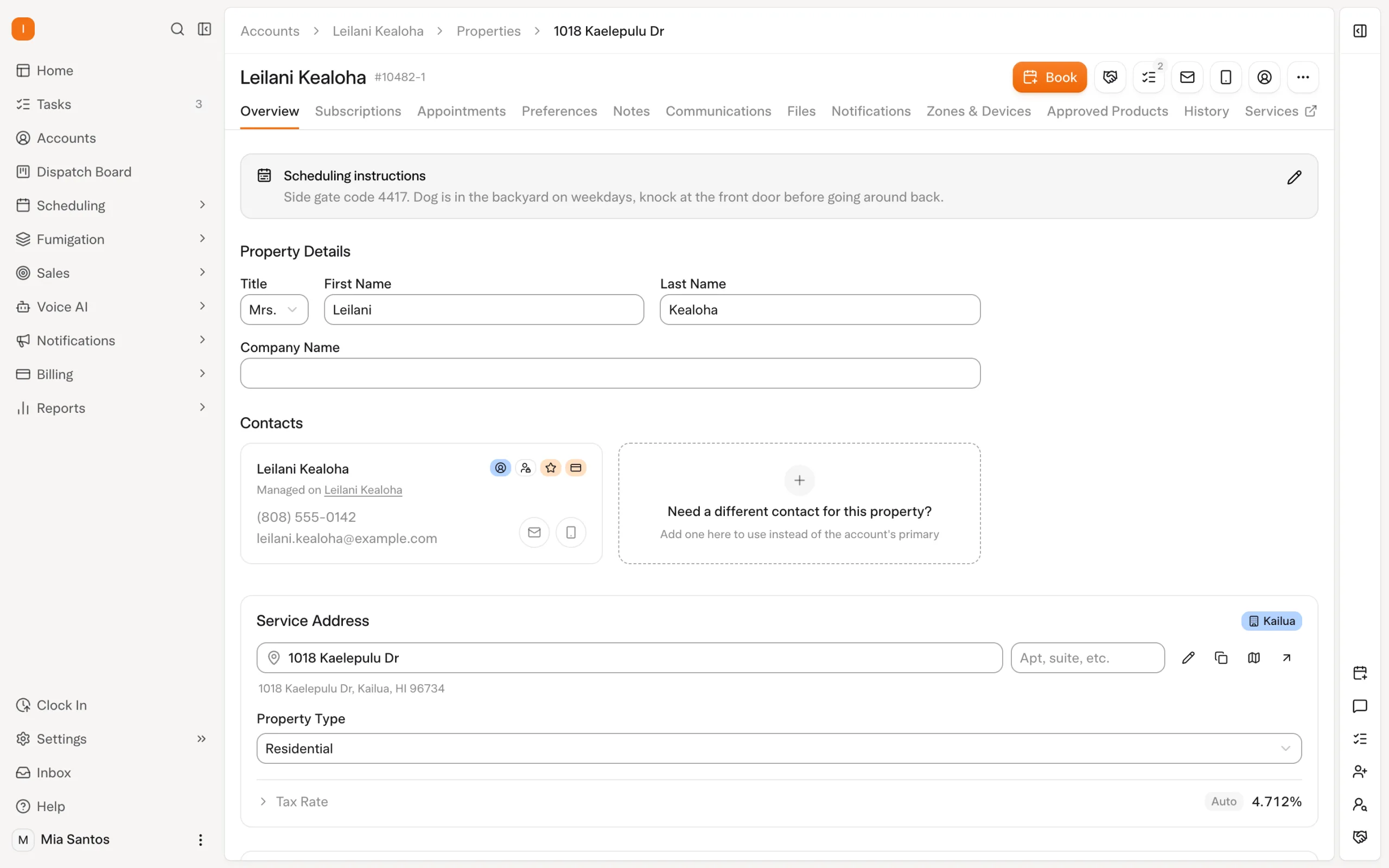
This screenshot shows the office-side customer record, not a portal screen. The office setup is part of the customer-facing experience even when the customer never sees those controls.
Give payments a clear self-service path
Let the customer identify what they owe and complete the enabled payment action. Then check what the office sees and whether a paid-invoice notification is configured to send the receipt. A successful transaction and a receipt are related but separate parts of the workflow.
Solea connects portal payments with its broader billing and collections operation. Configured auto-charge can handle eligible saved-method payments, while overdue rules provide routine follow-up for unpaid invoices. AI-assisted reporting extends the same platform into management review. Explore billing and payments.
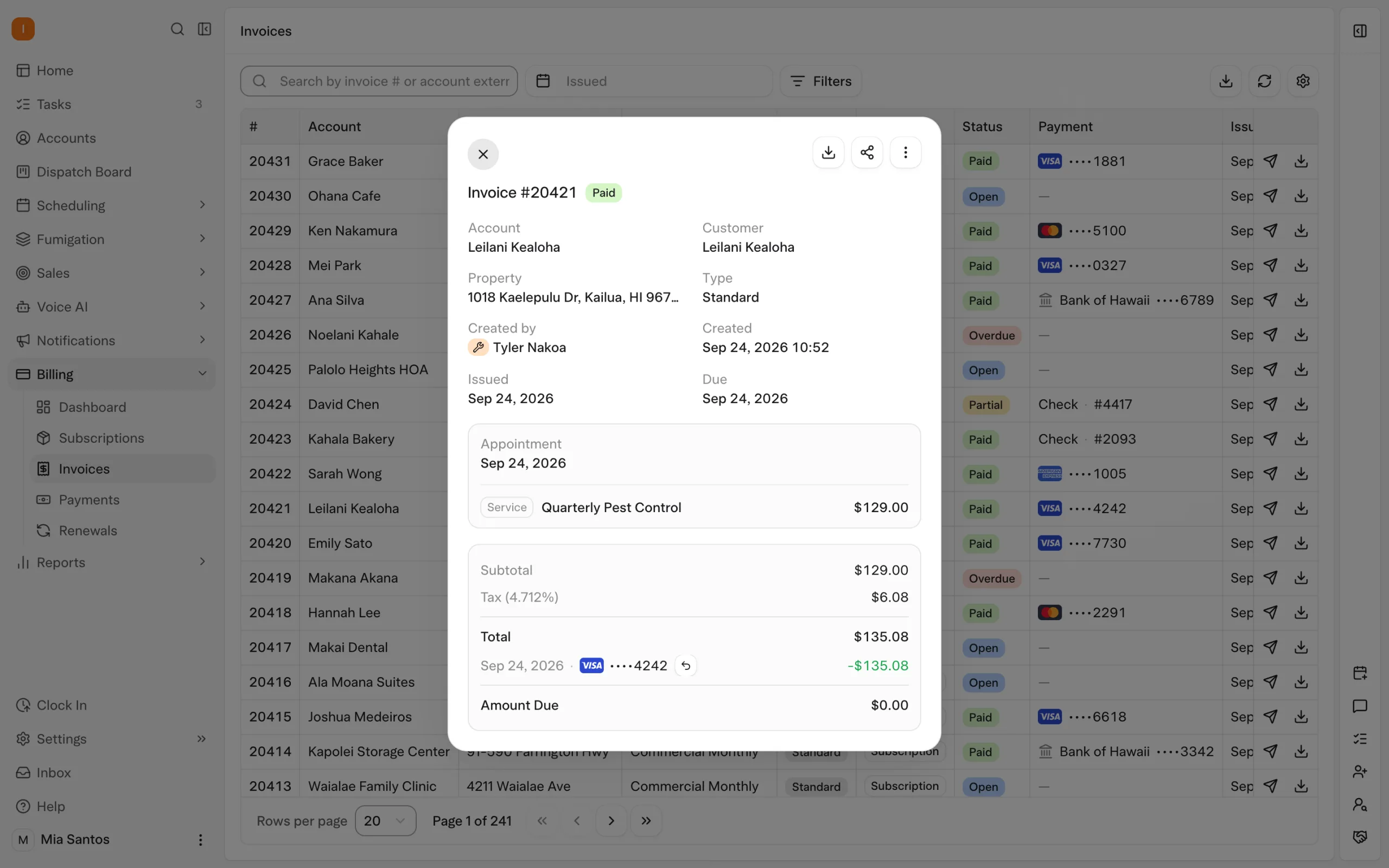
Test an unpaid invoice, a paid invoice and an account with no outstanding balance. The customer's next step should be clear in each case. For more detail on the office workflow, see service completion to payment.
Keep a human route for questions
Self-service does not make every customer request routine. A disputed service, access problem or question about a charge may need a person. Explain how customers should reach your team and what information helps the office investigate.
Use the portal to remove repetitive steps, not to make customers repeat the same question through several channels. The office should be able to look at the relevant account, visit or invoice while helping them. This is an operating recommendation, not a claim that the portal automatically resolves every conversation.
Roll out with a small customer sample
Choose a small set of accounts representing how your business works: a residential customer, a recurring account and a multi-property relationship. Enable the intended settings, verify access and follow each action through to the office result. Expand once the team can support those paths confidently.
Measure the change in a specific request type, such as calls asking for an invoice copy. Compare similar periods and volumes. A reduction is useful evidence, but do not assume every decline came from the portal if staffing, customer mix or communication also changed.
Solea brings customer self-service into the same AI-native operation that schedules, documents and collects for the work. Book a demo to test your customer journeys, or request a quote.
Frequently asked questions
- What is a pest control customer portal?
- A customer portal is a customer-facing place to access service and account information and perform enabled self-service actions. In Solea, documented actions include viewing visits, paying invoices, managing payment settings and downloading field reports. The office controls which pages and actions customers can use.
- Can customers confirm Solea appointments through the portal?
- Yes, when the office enables that option and the appointment is eligible. The documented confirmation action lets a customer confirm a pending appointment and lock its time. It starts disabled, so include the setting and resulting scheduling behavior in your launch test rather than assuming it is already active.
- Does Solea's portal use our own domain?
- The documented portal address uses your chosen slug within a Solea subdomain, with your company identity, logo and colors. That is different from hosting it on a fully custom domain. Confirm the exact address and branding during setup, then use consistent instructions when introducing the portal to customers.
- Will a portal eliminate customer calls?
- No portal should be evaluated on that assumption. It can give customers a direct path for routine actions, while service questions and exceptions still need support. Measure changes in specific request types and confirm that customers complete the intended action without needing the office to repeat it for them.
 Overnight