5 pest control customer message templates for service and billing
Adapt five service and billing messages for pest control, with clear event, recipient and payment checks before automation.
Last updated
A useful pest control customer message answers four questions: who is contacting me, which property or visit this concerns, what has happened and what I need to do. Use these five templates for routine service and billing communication, then connect each one to the correct event and recipient.
Solea's AI-native platform combines customer management, AI scheduling, field work, payments, collections and AI-assisted reporting. Configured notifications automate routine communication around that work so the office can focus on questions that need a person. The templates below are original editorial examples, not built-in Solea templates or verified merge-field syntax.
Before you use the examples
Replace every placeholder with verified information. When configuring a Solea notification, use the variables available for that event in the product rather than pasting the braces below as working automation fields. Test the recipient, content and action link on a controlled example before enabling a trigger.
These examples address existing service and billing relationships. They do not assume that a booking confirmation, service reminder and promotional message use the same settings or process. For the wider workflow, see pest control customer follow-up.
1. Upcoming service reminder
Use the actual commitment made to the customer. Do not insert a precise arrival time if the agreement is a wider window. Include access instructions only when they are accurate and appropriate for that property.
In Solea, service notifications use the property's communication details. AI scheduling operates around structured constraints, and notifications can be configured to lock appointments after they are sent. Align the message with those settings so the customer and scheduler are working from the same commitment. Explore scheduling and dispatch.
2. Appointment change confirmed
Send this only after the new arrangement is confirmed. A proposed optimization or an unresolved job-pool visit is not yet a customer promise. For a complex change, a person may need to agree the new arrangement before the final message is sent.
Solea's AI scheduling can prepare a new plan within customer and technician constraints. The communication should reflect the resulting confirmed state. This template is suitable for an approved message; it does not assert that every rescheduling scenario has a matching automatic notification event.
3. Service completed and information available
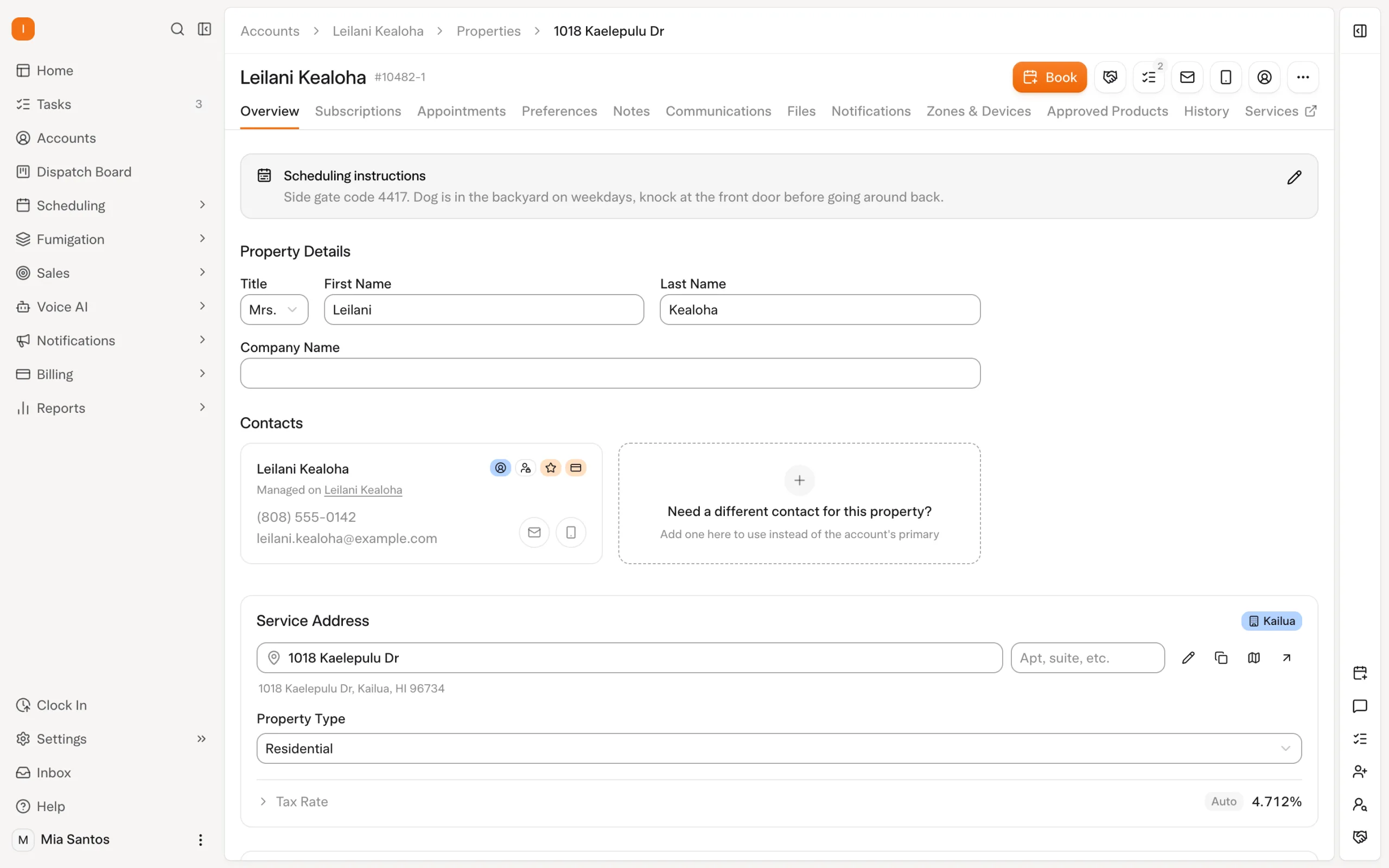
Only include a report link when that report is available to the intended recipient. Avoid inserting generic treatment instructions as if they came from the technician's actual service record. The message should point to the documented work rather than improvise its details.
Solea's field workflow connects the service record to the office. Its portal can make field reports available according to the relevant setup. The surrounding AI-native operation reduces repeat handling while the technician remains responsible for an accurate account of the service. Explore the field app.
4. Payment received
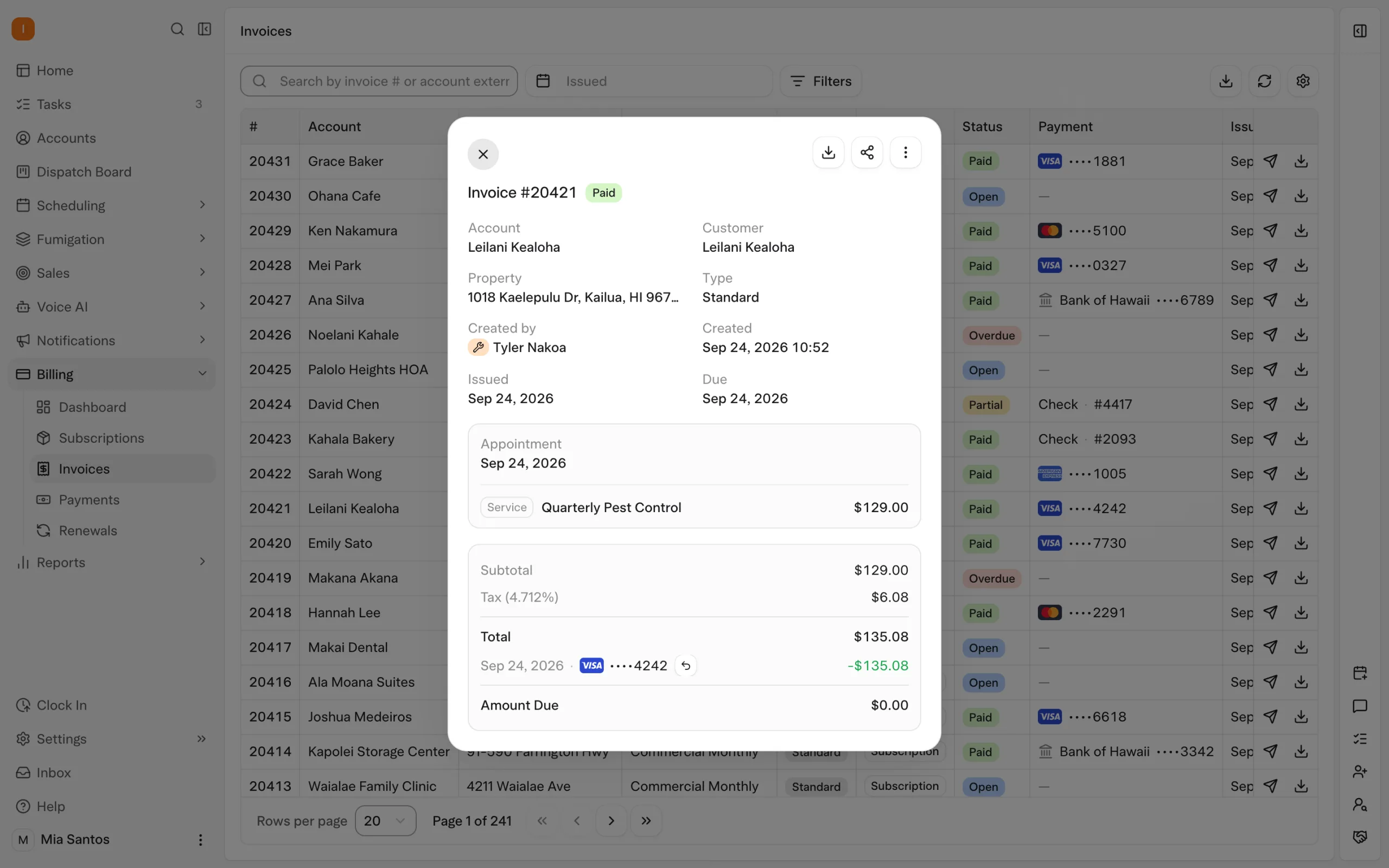
Use this after payment is recorded, not merely because an invoice was sent or a charge was attempted. If a receipt is attached rather than linked, adjust the wording to match the actual message. Do not tell the customer the whole account is settled unless that has been checked.
Solea's configured paid-invoice notification supports receipt communication. This follows the payment part of the connected workflow, alongside eligible saved-method auto-charge. Explore billing and payments.
5. Unpaid invoice reminder
Keep the amount and next step clear. A billing question or disagreement may need a person; repeating a stronger message does not resolve the underlying issue. Match the tone and timing to your customer relationship and configured process.
Solea supports overdue notification triggers using documented customer, service and invoice attributes. Each trigger sends through one channel; configure separate triggers if both email and text are needed. Explore collections.
Map the message to the operating event
| Message | Check before sending |
|---|---|
| Upcoming service | Correct property, committed timing and intended recipient. |
| Confirmed change | New arrangement agreed and old timing clearly superseded. |
| Service completed | Actual completion and available service information. |
| Payment received | Recorded payment and correct receipt reference. |
| Unpaid reminder | Current balance, applicable trigger and a working payment route. |
Review account or property notification suppression as well. Solea allows notifications to be switched off for a particular customer context, so check those settings when investigating why a message did not send. The office should verify delivery records rather than assuming that enabling a template means every customer received it.
For companies with 5+ technicians through mid-market and enterprise, Solea connects this communication with AI scheduling, payment automation and management review. Book a demo to test your notification paths, or request a quote.
Frequently asked questions
- Can I paste these templates directly into Solea?
- Use the wording as a starting point, but replace the editorial placeholders with the variables supported by the relevant product event. The braces shown here are not verified Solea merge-field syntax. Check the recipient, links and resulting message on a controlled example before turning on an automated trigger.
- Should service reminders and invoices go to the same contact?
- Not necessarily. In Solea, service email routing uses the property email, while billing communication uses the account's contact roles. This matters for customers whose site contact and finance team are different. Confirm the actual arrangement instead of assuming the person booking the visit is also responsible for payment.
- Does an invoice-paid notification send automatically without setup?
- Do not assume that it does. Solea's receipt communication depends on a configured paid-invoice notification. Test the payment and receipt as separate steps. A recorded payment, a generated receipt and successful delivery of a message are related events, but each needs to behave as expected in your setup.
- Can one Solea trigger send both email and text?
- The documented trigger sends on one channel. Configure separate triggers when the same event should send through both email and text, and review the resulting experience to avoid unnecessary duplication. Recipient details, applicable conditions and account or property suppression settings can also affect which messages are sent.

 Overnight